Azure Parquet data lake
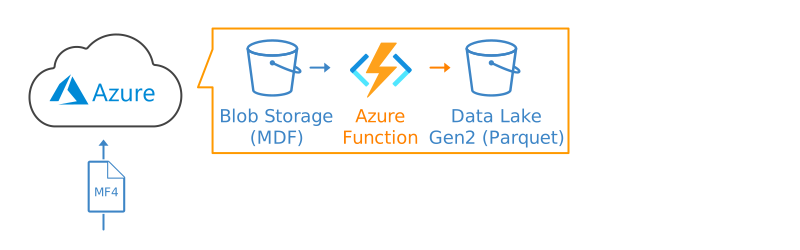
Here we explain how to create an Azure Parquet data lake (with Azure Function automation).
This can e.g. be used in PowerBI-Synapse dashboards or Python.
Note
This guide (and technical support on it) is intended for advanced users
Table of Contents
Overview
This guide enables you to set up an automated data pre-processing workflow. This includes an ‘input container’ (for MDF/DBC files) and an ‘output container’ (for Parquet files). It also includes an ‘Azure Function’, which auto-processes new MDF files uploaded to the input container - and outputs them as decoded Parquet files in the output container.
Note
Ensure you test the MF4 decoders with your log files & DBC files locally before proceeding.
1: Upload DBC files to input container
- Upload your prepared DBC files to your input container root via the Azure console
2: Create new storage account and output container
- In the Azure console, go to Storage Accounts and create new
- Specify a name (e.g.
parquetstorageaccount) - Select the same resource group and region as your input container
- Click ‘Next’ and enable ‘Enable hierarchical namespace’, then ‘Review + create’
- Go to the Storage Account / Data storage / Containers and add a new container
- Specify a name (e.g.
parquet-container-output)
3: Create Azure Function App
- In the Azure console, go to Function App and create new
- Specify a name (e.g.
mdf-to-parquet) - Select the same resource group and region as before
- Select Python 3.11 as the runtime stack and choose ‘Consumption (serverless)’
- Click ‘Review + create’
4: Set up environment variables
- Note down the ‘Connection string’ from your input + output storage accounts[3]
- Go to your Azure Function App ‘Settings/Environment variables’
- Add the following environment variables (name/value pairs):
StorageAccountConnectionStringInput / <input Storage Account connection string>
StorageAccountConnectionStringOutput / <output Storage Account connection string>
- Make sure to click ‘Apply’ after adding the above (this will restart the app)
5: Modify and deploy Azure Function
- Install the Azure CLI (to enable authentication)
- Install Azure Functions Core Tools (for publishing Azure Functions)
- Create a local folder called
azure-function-deployment - Download and unzip our ready-to-use Azure Function below in the folder
- Open the
function_app.pyfile with a text editor - Update the
input-container-nameandoutput-container-nameto match your containers - If your log files are compressed/encrypted, change the
MF4suffix[4] - In the
azure-function-deploymentfolder, open your command line - Run
az loginto authenticate - Run
func azure functionapp publish <your-function-app-name> --python[5] - Verify that the
MdfToParquetfunction is in your Azure Function App overview
6: Test Azure Function
- Upload a test MDF file from your CANedge into your input container via the Azure console
- Verify that the decoded Parquet files are created in your output container
Your data lake will now get auto-filled when new MDF files are uploaded to the input container[6].
Next, you can e.g. set up Azure Synapse to enable PowerBI-Synapse dashboards.
| [1] | If you have connected a CANedge2/CANedge3 to an Azure Blob Storage Container then this is your input container |
| [2] | If this is your first time deploying this integration, consider creating a ‘playground’ input container that is separate from your ‘production’ input container (where your CANedge units are uploading data to). This allows you to test the full integration with sample MDF files - after which you can deploy the setup on your production input container. |
| [3] | You can find the connection string in your Storage Account under ‘Security + networking/Access keys/Connection string’ |
| [4] | If you e.g. use compression, your MDF files will use the suffix MFC - and the trigger function in the function_app.py will need to be adjusted accordingly |
| [5] | Replace <your-function-app-name> with your Function App name, e.g. mdf-to-parquet |
| [6] | If you are not seeing the expected results, double check that you’ve edited and published the Azure Function correctly. In your Azure Function App, you can click the MdfToParquet Function and open the ‘Monitor’ section to see recent invokations incl. console details that may help in troubleshooting |